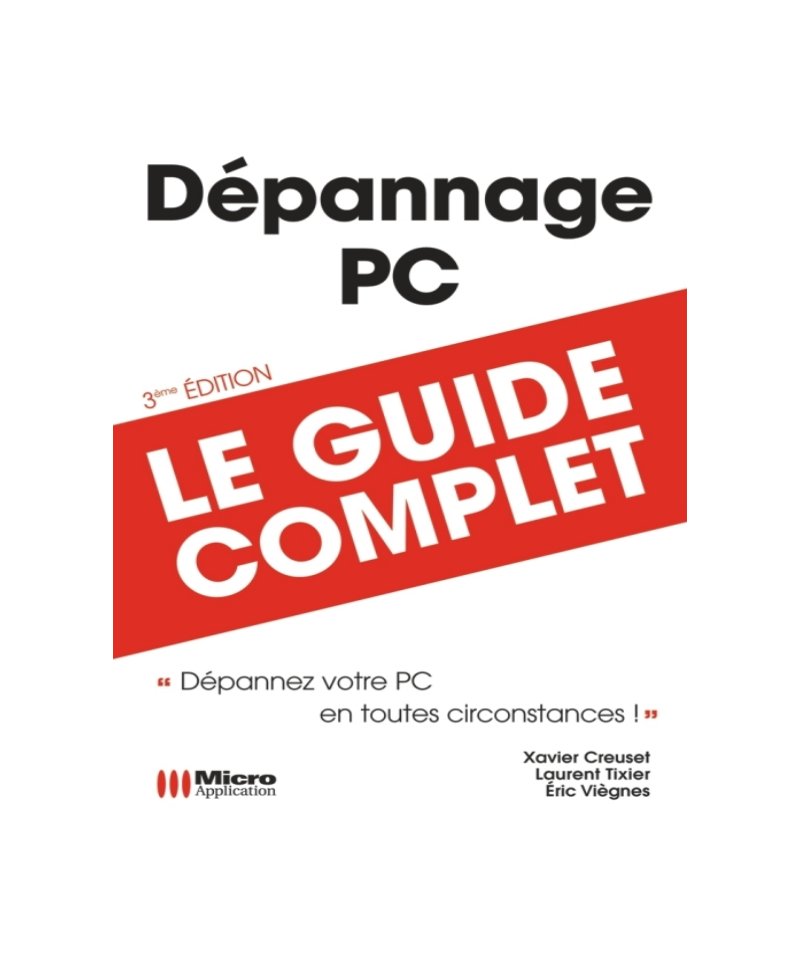
PC Troubleshooting Complete Guide - 3rd Edition
A comprehensive PC troubleshooting guide spanning 400 pages that walks you through diagnosing and fixing hardware failures, system crashes, and software conflicts. Whether you're dealing with a failed hard disk, driver installation problems, video card issues, USB peripherals that won't cooperate, or printing breakdowns, this manual provides straightforward solutions rather than theory. You'll find practical help with startup problems, Windows system identification, network setup and troubleshooting, firewall configuration, and virus protection strategies. The guide includes dedicated sections on backup and restoration procedures—essential when things go wrong. Coverage extends to Internet Explorer, Windows Mail, and Microsoft Office 2007 (Word and Excel) troubleshooting, so you're covered across the applications most users rely on daily. Each chapter is built around real problems with checklists and FAQs to help you zero in on your specific issue without wading through irrelevant content. The structured approach and worked examples make this service manual equally useful for someone encountering their first PC problem or an experienced user tackling an unfamiliar hardware failure.
Table of Contents:
- Chapter 1 - Hardware .... page 9
- Detail of components and drivers .... page 10
- Detecting a poorly installed peripheral or encountering driver problems .... page 13
- Updating a peripheral driver .... page 15
- Identifying different hardware-related failures (during Vista startup) .... page 17
- Determining the origin of the failure during computer startup .... page 17
- Allowing the computer to boot from the Windows Vista installation DVD .... page 21
- Hard disk invisible problem under Windows Vista .... page 23
- Solving video card problems .... page 27
- The video card produces no display .... page 27
- Display is limited under Windows Vista .... page 28
- Correcting and preventing problems related to hard drives .... page 33
- Solving a problem related to a missing file at Vista startup .... page 33
- Solving a problem caused by a hard drive failure .... page 37
- Preventing failures due to fragmentation .... page 42
- Diagnosing and correcting a memory problem .... page 44
- Physical memory problems .... page 44
- Using the ReadyBoost function .... page 47
- Solving USB peripheral problems .... page 50
- Case of a peripheral that refuses to be recognized even with the correct driver .... page 50
- Avoiding data loss when disconnecting a storage peripheral .... page 52
- Solving printing problems .... page 54
- Resetting the print spooler .... page 55
- Check-list .... page 56
- Chapter 2 - Identifying system problems on Windows Vista .... page 57
- Solving problems related to system startup .... page 58
- Advanced startup options .... page 58
- Configuring Vista startup with Msconfig .... page 65
- Windows Vista diagnostic tools .... page 69
- Using the Event Viewer .... page 69
- Using Microsoft problem resolution .... page 75
- Reliability monitor and performance analyzer .... page 81
- Identifying a problematic process .... page 92
- Solving problems related to user accounts .... page 94
- Description of User Account Control .... page 95
- Working with a standard user account .... page 97
- Working with an administrator account but limiting UAC interventions .... page 98
- Removing User Account Control .... page 101
- Solving file problems .... page 103
- Moving personal data from one user to another hard drive or partition .... page 103
- Solving file association problems .... page 106
- Check-list .... page 108
- Chapter 3 - Networking .... page 109
- Internet network .... page 110
- Sharing your Internet connection with other machines .... page 110
- Routers and other Internet boxes .... page 115
- Local network .... page 116
- Components of a local network .... page 116
- Different states of a network card .... page 117
- Troubleshooting a wired network .... page 118
- Wi-Fi network .... page 120
- Network and Sharing Center .... page 122
- Network locations .... page 122
- Network discovery .... page 124
- File and printer sharing .... page 126
- Firewall .... page 141
- Windows simplified firewall .... page 141
- Windows advanced firewall .... page 146
- Remote control .... page 152
- Remote Desktop .... page 152
- Remote Assistance .... page 158
- Requesting assistance by email .... page 159
- Check-list .... page 160
- Chapter 4 - Security .... page 163
- Retrieving and installing Windows Vista Service Packs .... page 164
- Preventing password loss .... page 167
- Creating a backup of the administrator account password .... page 167
- Using a password reset disk to connect after losing your administrator account password .... page 169
- Avoiding intrusions on your machine .... page 172
- Windows Vista Security Center .... page 173
- Blocking intrusions using Windows firewall .... page 174
- Protecting your machine from viruses and spyware .... page 177
- Windows Defender (protection against spyware) .... page 178
- Analyzing and searching for spyware on your PC .... page 182
- Configuring antivirus software with Windows Security Center .... page 185
- Reacting in case of viral attack .... page 187
- Removing Windows Security Center notifications .... page 188
- Problem following an automatic Windows Vista update .... page 189
- Backing up and restoring your machine .... page 191
- Backing up and restoring the Registry .... page 192
- Backing up and restoring your data .... page 195
- Complete computer backup and restoration .... page 201
- System optimization .... page 208
- Hard drive optimization .... page 208
- Windows Vista loading optimization .... page 211
- Windows Vista optimization for daily operation .... page 218
- Check-list .... page 223
- Chapter 5 - Software failures .... page 225
- My program no longer starts .... page 226
- My program does not start .... page 227
- Installing or uninstalling software correctly .... page 227
- Reports and solutions to problems .... page 228
- Consulting the event log .... page 230
- Auto diagnostic or auto repair .... page 231
- Using a restore point .... page 232
- Interacting with compatibility properties .... page 233
- Creating a restore point .... page 240
- Uninstalling software .... page 242
- Installing software .... page 245
- Configuring a program to correct errors .... page 247
- Emulating another operating system with Virtual PC 2007 .... page 248
- Diagnosing and repairing Microsoft Office 2007 .... page 258
- Cohabitation problem with previous versions of Office .... page 262
- File exchange problems with files created with Office 2007 .... page 263
- Applying mass corrections for Office 2007 with Service Pack 1 .... page 264
- Word processing (Microsoft Office Word 2007) .... page 265
- My correspondents cannot read my documents .... page 265
- Repairing a Word file .... page 267
- Activating automatic document recovery .... page 270
- Word document illegible when opening via Explorer .... page 271
- Images do not display in a document .... page 273
- Symbols appear in my document .... page 274
- Removing default line spacing .... page 276
- Cannot find politeness formula insertion .... page 278
- When I type a word in my document, another word appears .... page 280
- When typing a character, I erase the present character .... page 281
- The command Ribbon has disappeared .... page 282
- Using the Word 2007 publisher knowledge base .... page 283
- Spreadsheet (Microsoft Office Excel 2007) .... page 284
- Cannot freeze multiple rows or columns .... page 285
- Cannot visualize all my data in a column .... page 286
- Hidden columns or rows .... page 287
- Cannot see calculation results but my formulas .... page 288
- Cannot modify cell formatting .... page 289
- Using the Excel 2007 publisher knowledge base .... page 290
- Check-list .... page 291
- Installing or uninstalling software correctly .... page 291
- Word processing (Microsoft Office Word 2007) .... page 292
- Spreadsheet (Microsoft Office Excel 2007) .... page 292
- Chapter 6 - Internet applications .... page 293
- Internet Explorer .... page 294
- Web page cannot be displayed .... page 294
- Clearing browsing history with Internet Explorer .... page 302
- Resetting Internet Explorer parameters .... page 304
- Disabling Internet Explorer 7 .... page 306
- Changing Work offline status of Internet Explorer .... page 308
- Web page display problems related to security .... page 309
- Partial display of a web page .... page 323
- Missing complementary modules .... page 330
- Display problem with secure pages .... page 336
- Various problems with Internet Explorer .... page 342
- Disabling and/or uninstalling toolbars added to Internet Explorer .... page 346
- Windows Mail .... page 348
- Mailbox synchronization problem .... page 348
- Authorizing a sender .... page 353
- Protecting your
Documentation must be downloaded on a computer (PC, Mac, or Linux).
Do not use a smartphone or tablet to download documentation; they generally lack sufficient memory capacity to handle large files, and few users know how to locate the download folder on these devices.
Once downloaded, you can use it right away and even print the pages you need, or use your smartphone in photo mode to translate into the language of your choice: Google Translate
Document Details
- Format
- Pages
- 400
- Size
- 13.5 MB
- Category
- DIY & Home Improvement